 LightChuan Shop
Gemini Pro 激活教程Gemini Pro Activation Guide
第 1 步Step 1关闭付款资料Close the payment profile
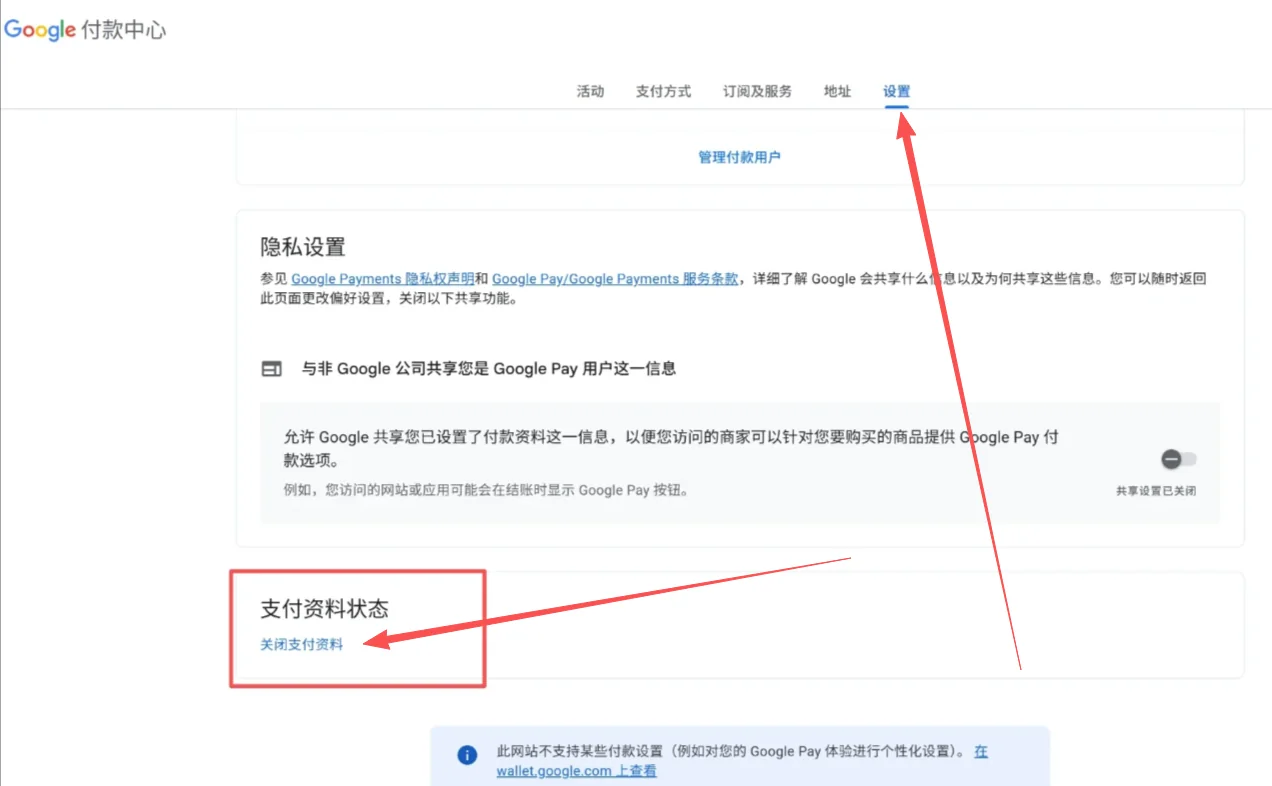
第 2 步Step 2设置 2FA 密钥Set up your 2FA key
2FA 密钥是一串 16 位以上的字母数字(例如 ABCDEFGHIJKLMNOPQRSTUVWXYZ234567),不是 6 位验证码。A 2FA key is 16+ letters and digits (e.g. ABCDEFGHIJKLMNOPQRSTUVWXYZ234567) — not a 6-digit code.
购买的账号:发货内容最后一段就是 2FA 密钥,直接用,可跳到第 3 步。
自己的账号:按下面 8 张图,删掉旧的验证器,换一个新的。Purchased account: the last part of the delivery is the 2FA key — use it and skip to step 3.
Your own account: follow the 8 pictures below to remove the old authenticator and set a new one.
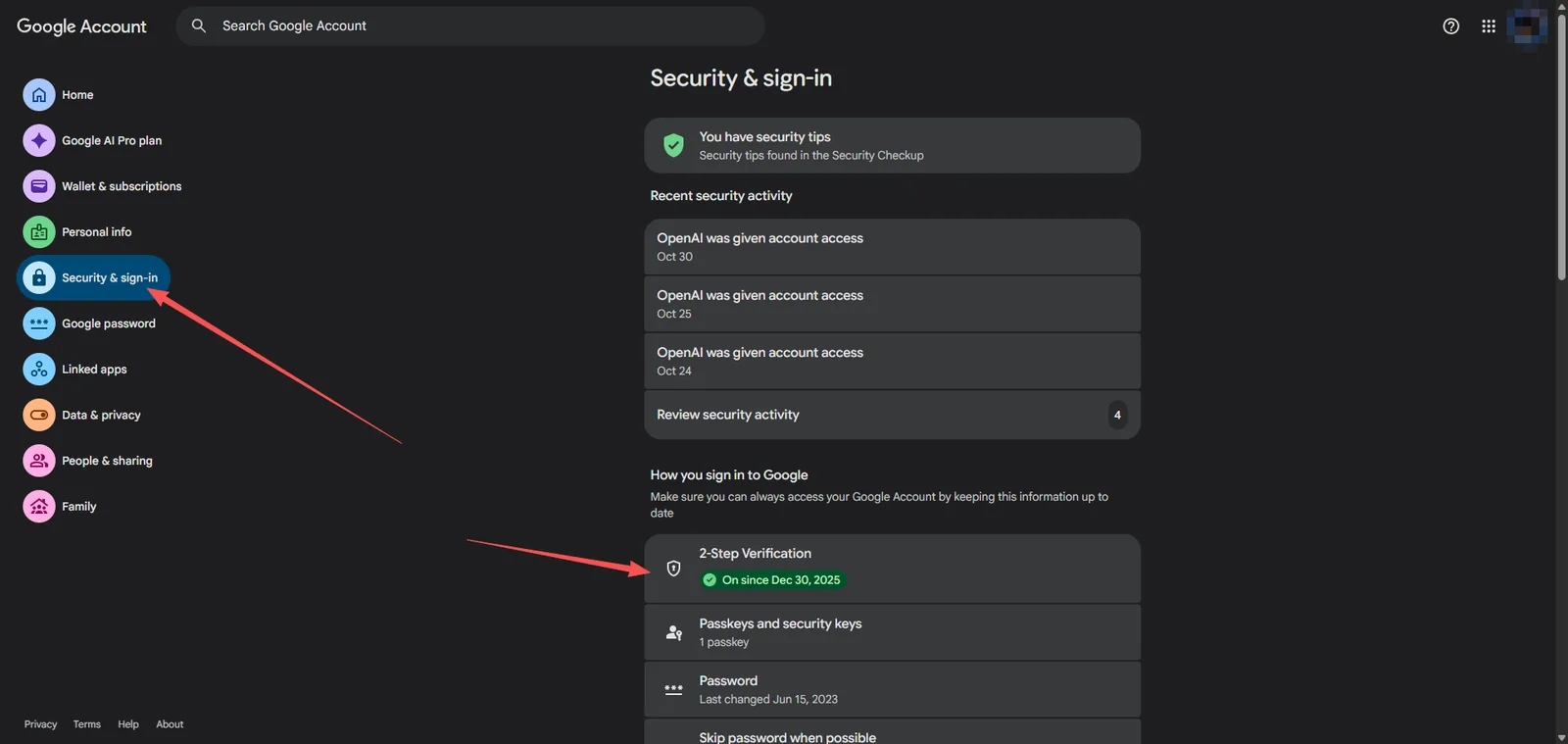
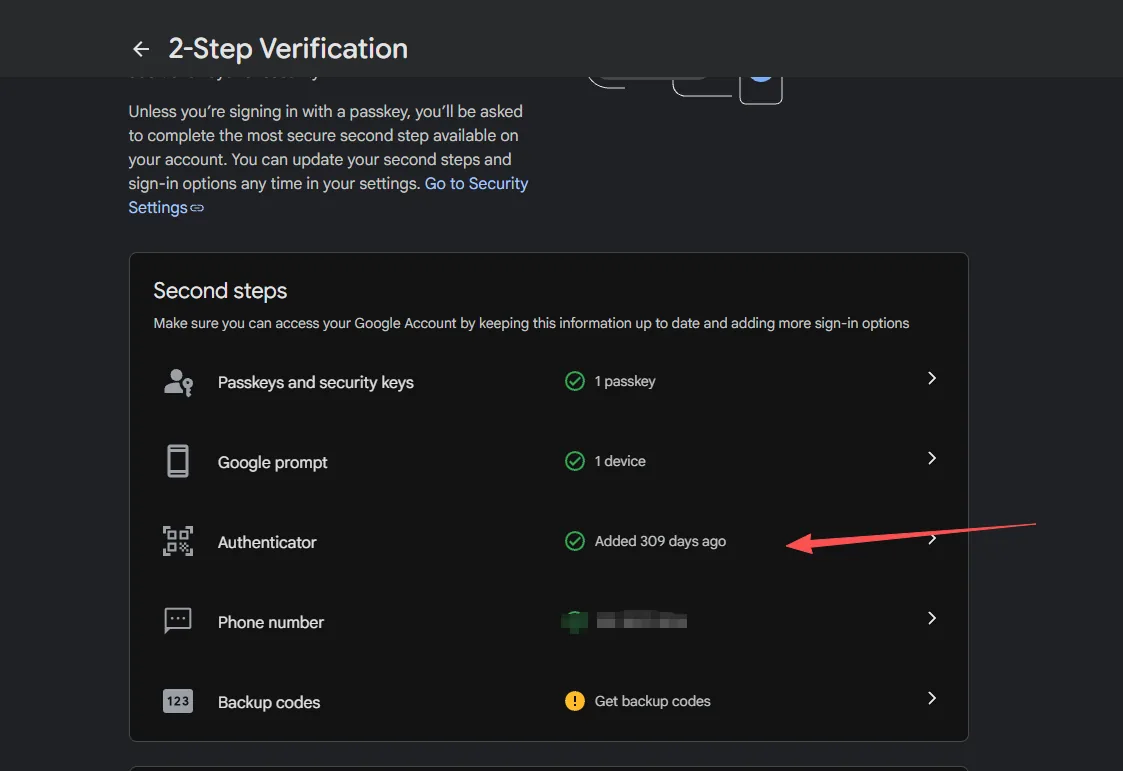
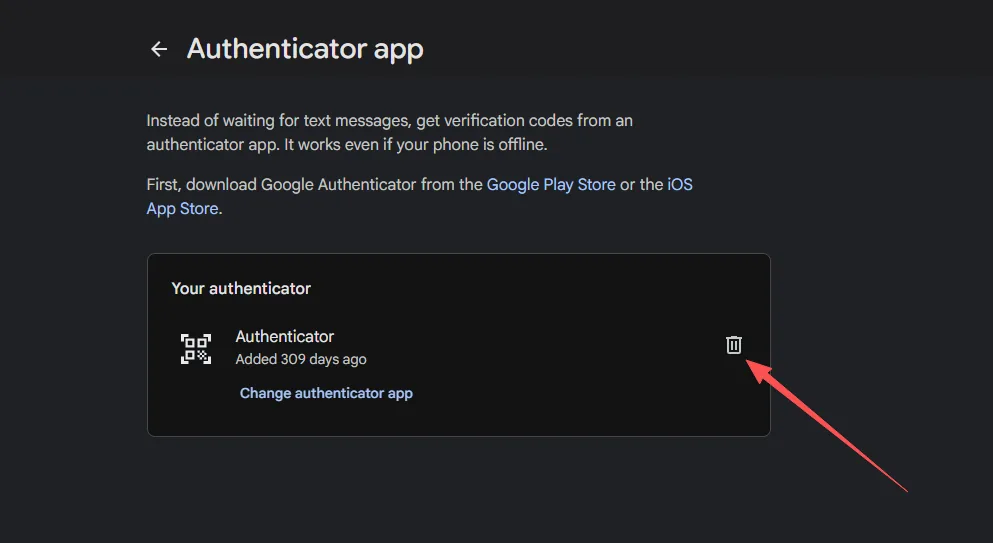
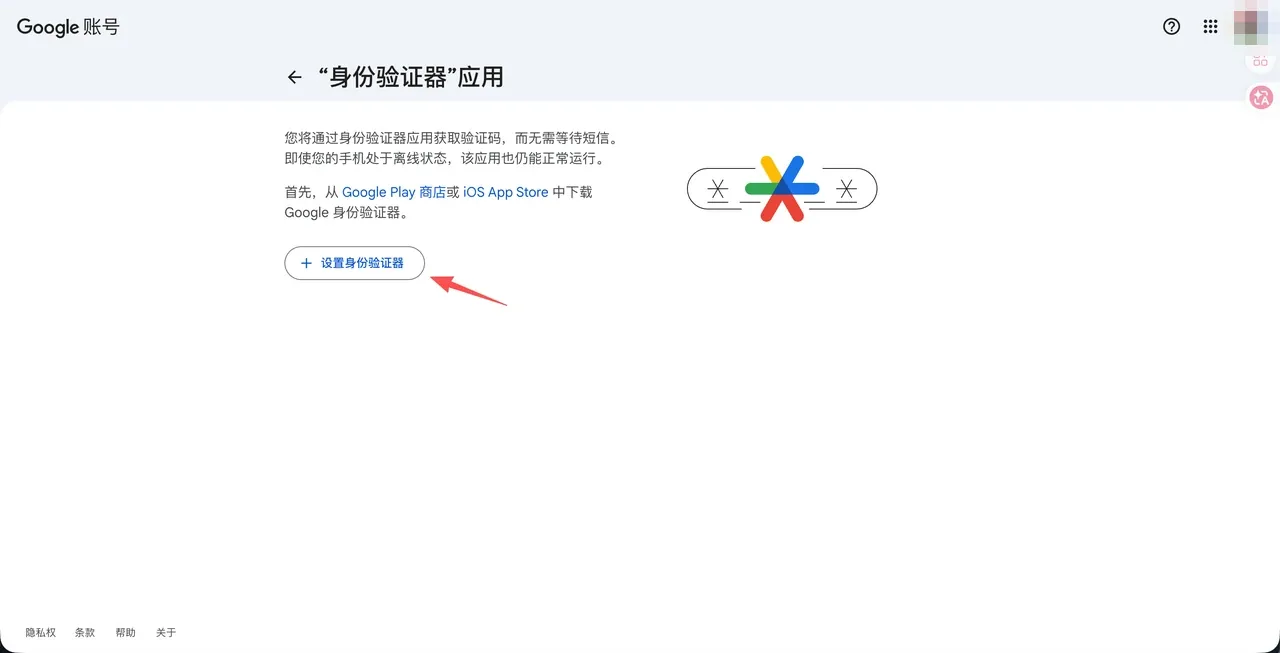
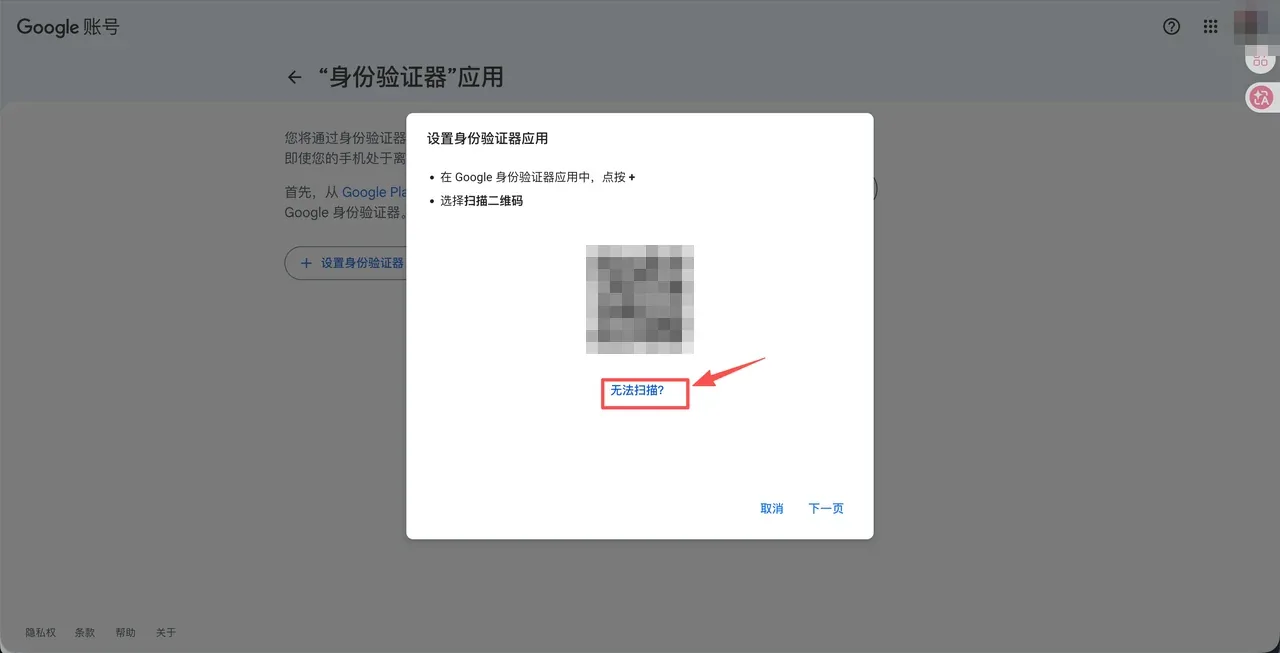
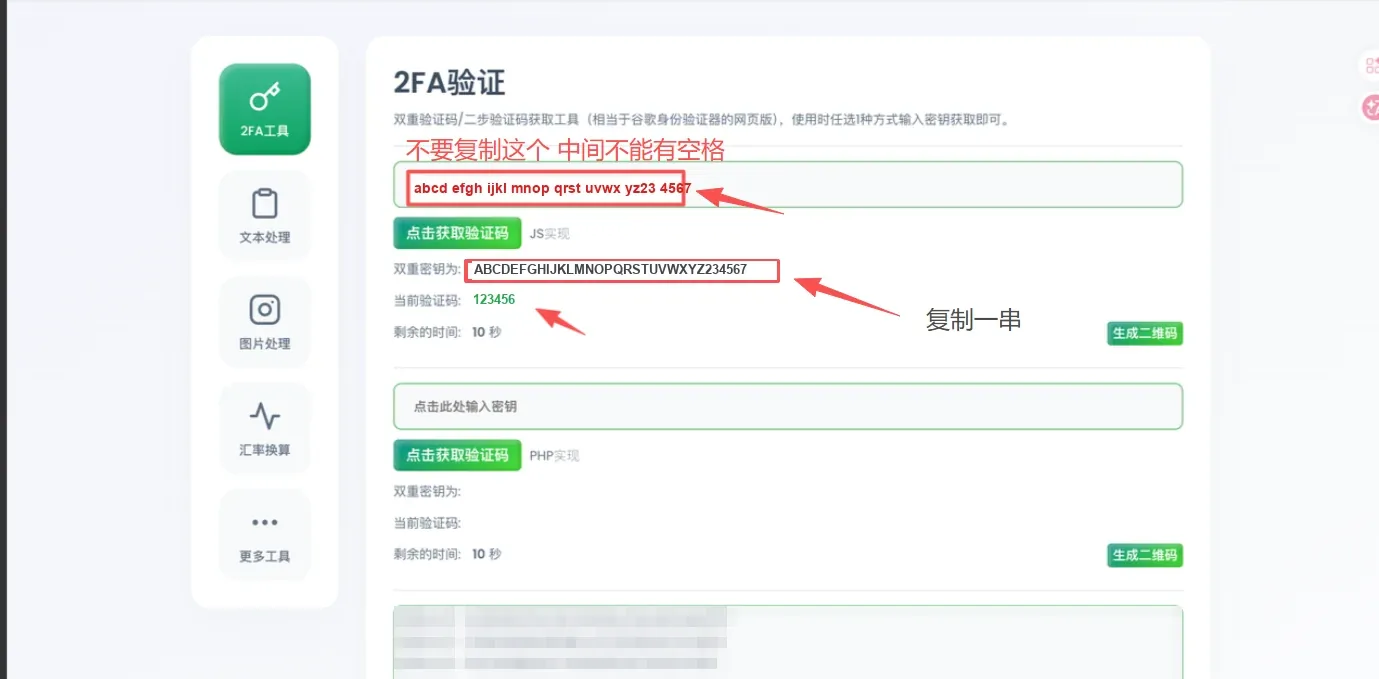
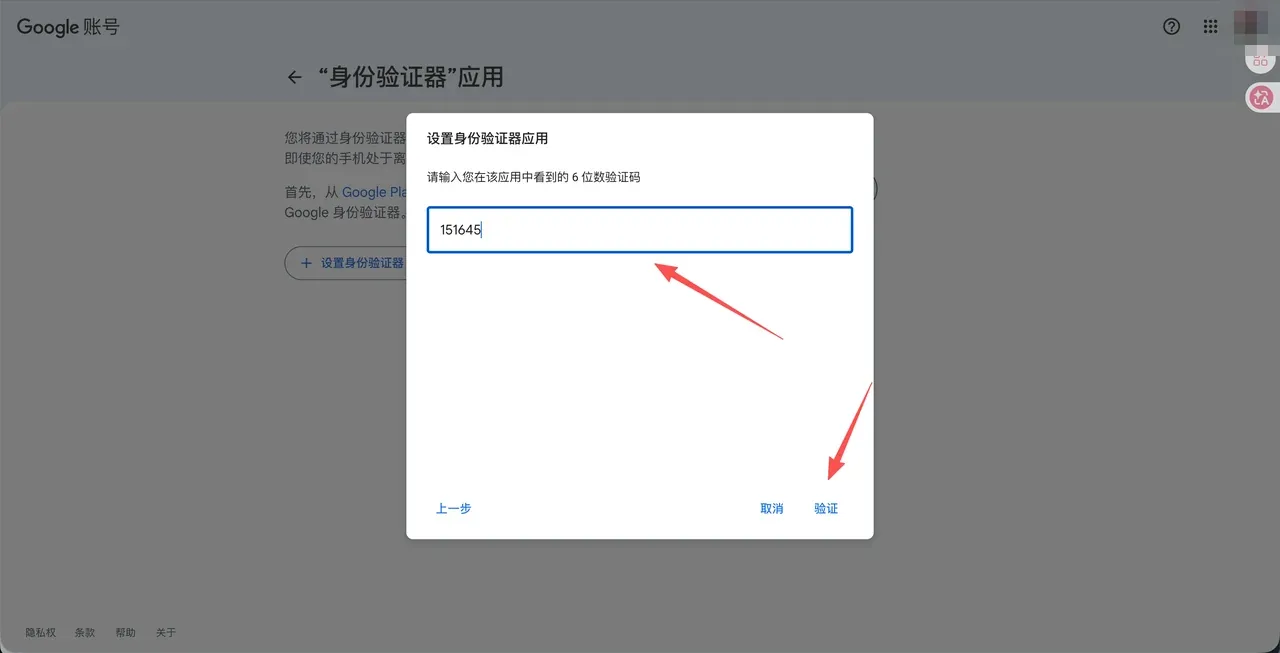
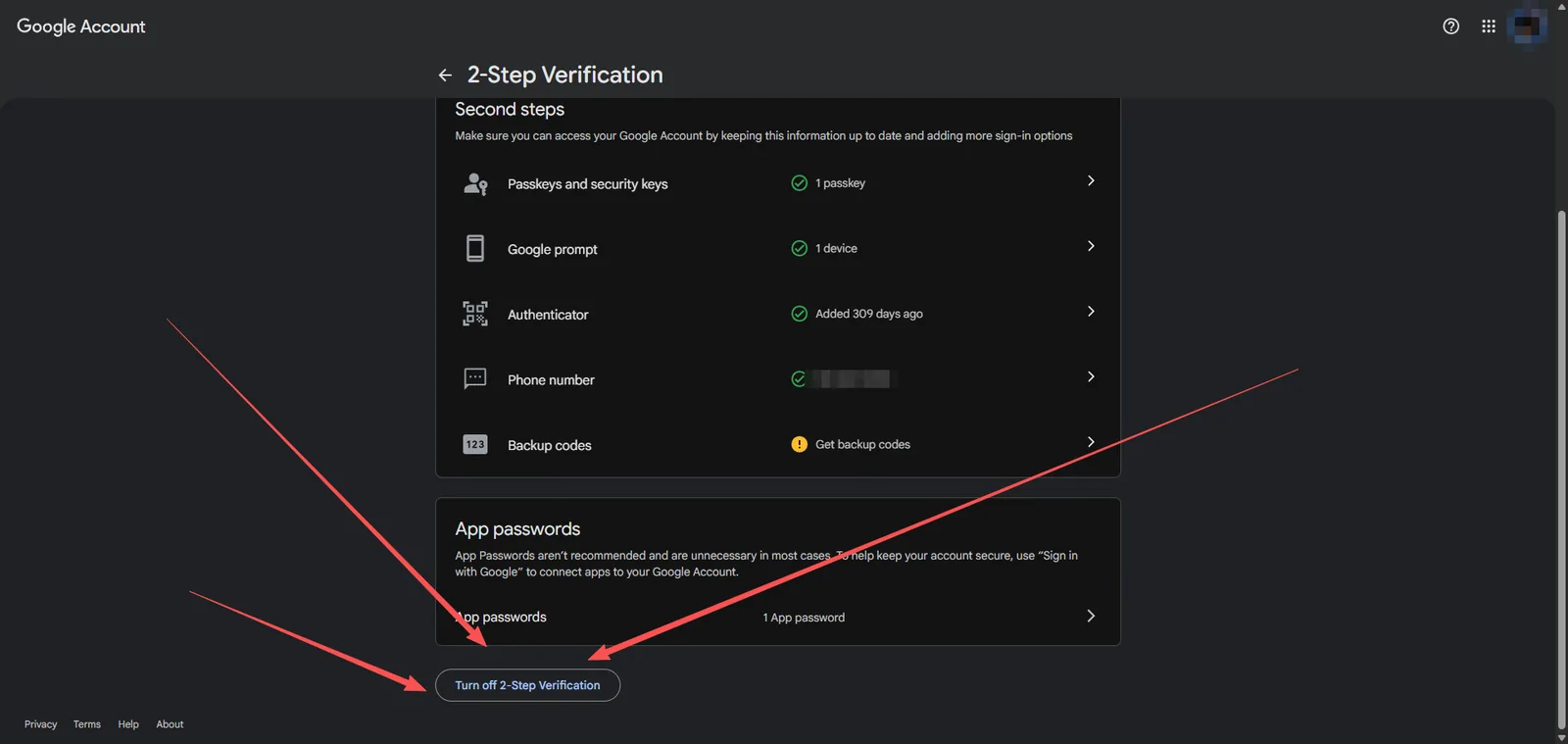
一定要点「验证」,并且两步验证必须是开启状态,否则激活时会提示「未找到身份验证器」。You must click “Verify” and 2-Step Verification must be on — otherwise activation reports “Authenticator option not found”.
第 3 步Step 3提交激活Submit for activation
打开激活页的 Gemini Pro,填好下面几项,点「提交激活」。Open Gemini Pro on the activation page, fill in the fields and click Submit.
| 输入框Field | 填什么What to enter |
|---|---|
| CDK 卡密CDK | 你的卡密(Gemini6monpixel- / Gemini12monpixel- / Gemini24monpixel- 开头)。Your CDK (starts with Gemini6monpixel- / Gemini12monpixel- / Gemini24monpixel-). |
| 邮箱账号 / 登录密码Email / Password | 要开通的 Google 账号和能直接登录的密码。The Google account to activate and a password that signs in directly. |
| 2FA 密钥2FA key | 第 2 步保存的那串密钥,不是 6 位验证码。The key you saved in step 2 — not a 6-digit code. |
| 辅助邮箱Recovery email | 可选,没有就留空。Optional — leave empty if none. |
通常十几分钟完成,不要重复提交。可以关闭网页,保存好卡密,稍后到「卡密查询」查看结果。It usually takes ~15 minutes — don't resubmit. You can close the page; keep your CDK and check later under “Check CDK”.
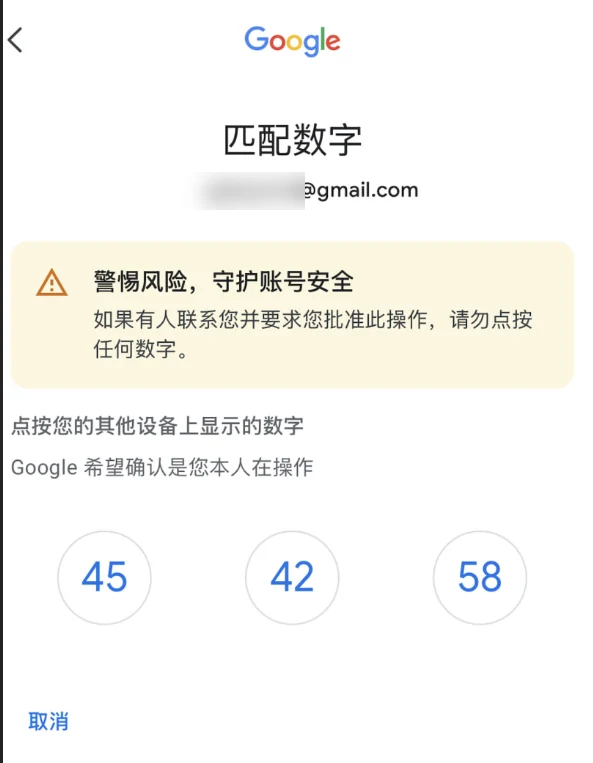
不要点任何数字,等激活结果就行。Don't tap any number — just wait for the result.
第 4 步Step 4核实订阅Verify your subscription
- 显示「激活成功」后,打开 Google Play 订阅页 ↗ 查看 Gemini 订阅和时间。After “Activated”, open Google Play subscriptions ↗ to see the Gemini subscription and dates.
- 及时修改密码与 2FA,保证账号只有你自己能登录。Change your password and 2FA promptly so only you can sign in.
Google 按月显示续订日期,不代表只开通了 1 个月。Google shows a monthly renewal date — it doesn't mean you only got 1 month.
订阅包含 Gemini Pro(6 / 12 / 24 个月)、YouTube Premium 1 个月和 Gemini 4 Argon 模型;但模型和 Antigravity(反重力)能否使用,取决于你自己的谷歌账号。例如有的账号能用反重力、却用不了模型,可能与该账号此前经 JIO 等渠道订阅后又取消有关。Includes Gemini Pro (6 / 12 / 24 months), 1 month of YouTube Premium and the Gemini 4 Argon model. Whether the model and Antigravity work depends on your own Google account — e.g. some accounts can use Antigravity but not the model, possibly because they subscribed via JIO or similar and then canceled.
失败了怎么办If it fails
找到页面上显示的原因,照着做。Find the message shown and follow it.
| 页面提示Message | 怎么办What to do |
|---|---|
| 系统原因:用同一张卡密重新提交System issue — resubmit with the same CDK | |
| 执行超时或网络异常 / 系统繁忙Timeout or network error / system busy | 不是你的账号问题,额度已自动退回,直接重新提交。Not your account's fault. The credit is returned — just resubmit. |
| 设置没做好:改好后用同一张卡密重新提交Fix your settings, then resubmit with the same CDK | |
| 2FA 密钥错误(验证码不匹配)Wrong 2FA key (code mismatch) | 密钥填错了,或填成了 6 位验证码。按第 2 步重新拿密钥。Wrong key, or a 6-digit code was entered. Redo step 2. |
| 未找到身份验证器Authenticator option not found | 没点「验证」或两步验证没开启。回到第 2 步的图 7、图 8。“Verify” wasn't clicked or 2-Step Verification is off. See pictures 7 and 8 in step 2. |
| 未检测到结账弹窗No checkout pop-up detected | 账号还有订阅没完全取消,或付款资料没关。按第 1 步处理。A subscription isn't fully canceled, or a payment profile is still open. See step 1. |
| 账号被风控:只能换号Account flagged — switch accounts | |
| 需要手机接码 / 缺少号码上下文 / 登录无法验证归属 / 我们无法验证您的身份Phone verification required / missing phone context / unable to verify ownership / “Couldn't verify it's you” | 谷歌账号已被风控,请换一个账号(建议老号)再用同一张卡密提交。The Google account is flagged. Switch to another account (aged is best) and resubmit with the same CDK. |
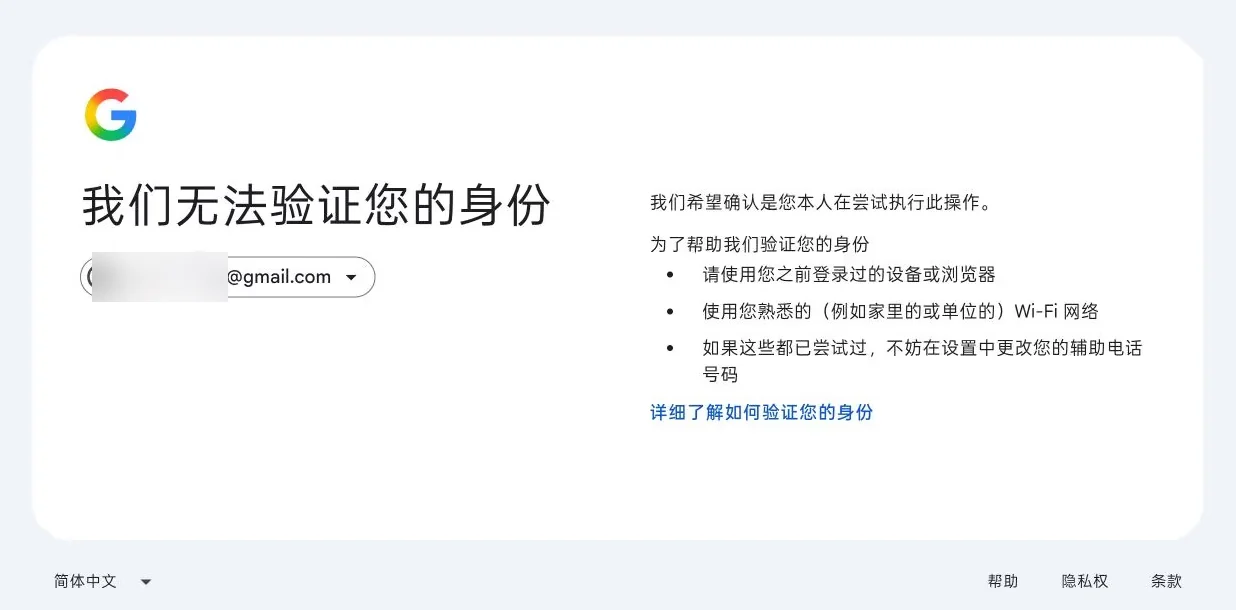
账号被风控属于账号自身问题,请自行更换账号处理,此类问题不提供任何回复支持。A flagged account is an issue with the account itself — please switch accounts yourself. We don't provide support replies for this.